SQLite-3.713.1749
- ARGOSLABS
| SQLite |
|---|---|
Author: Kyobong An Primary Features The SQLite plugin has features to operate SQLite RDBMS. You can learn more about SQLite at https://www.sqlite.org/src/doc/trunk/README.md. The plugin can take SQL statement(s) either directly or via file. Special Notes When inputting a series of SQL statements from a file, it is recommended to separate ‘one way’ statements such as INSERT INTO from ‘two-way’ statements such as SELECT.
How to install SQLite See below for 'step by step' instruction |
Input (Requirements)
- DB file (file path) --- file extension is .db
- SQL statement(s)
- Single statement
- Statement(s) in file --- file extension is .sql
Input (Optional)
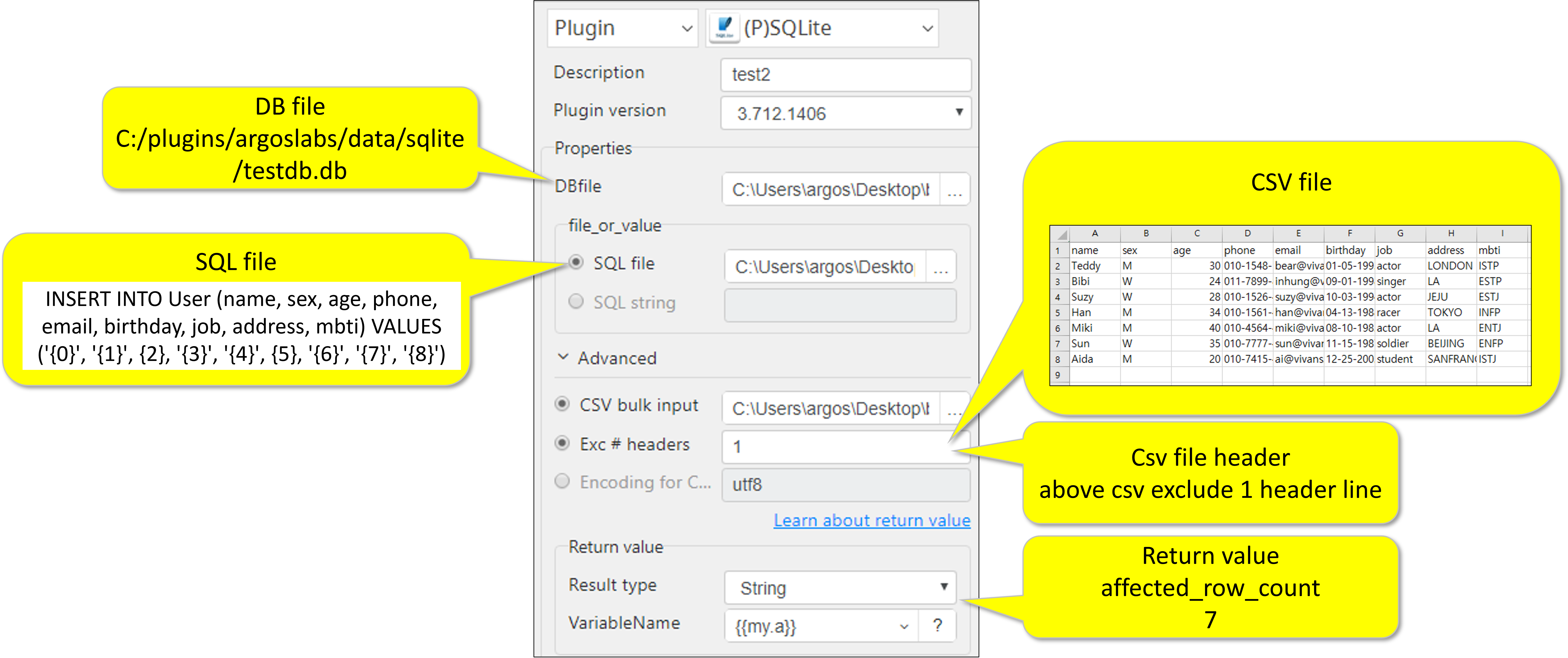
- CSV file (file path) for bulk input
- Number of lines (rows) to be excluded as they contain header(s)
- Encoding format of the CSV file
Output – Return Value
This plugin returns value depending on the SQL statement.
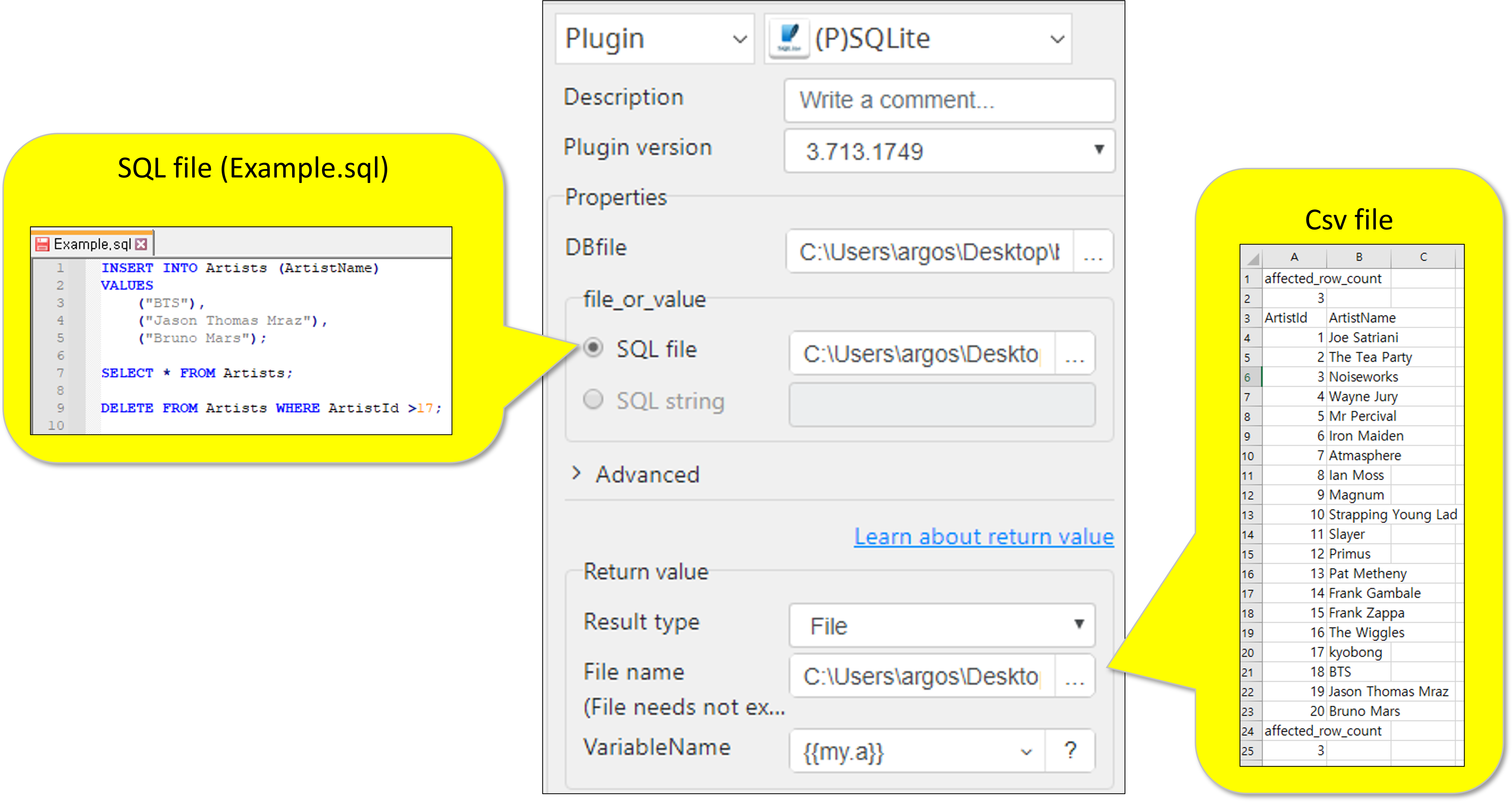
Statements such as INSERT INTO and DELETE will return 2 lines like below. (it takes a format of one-column CSV file)
affected_row_count
3
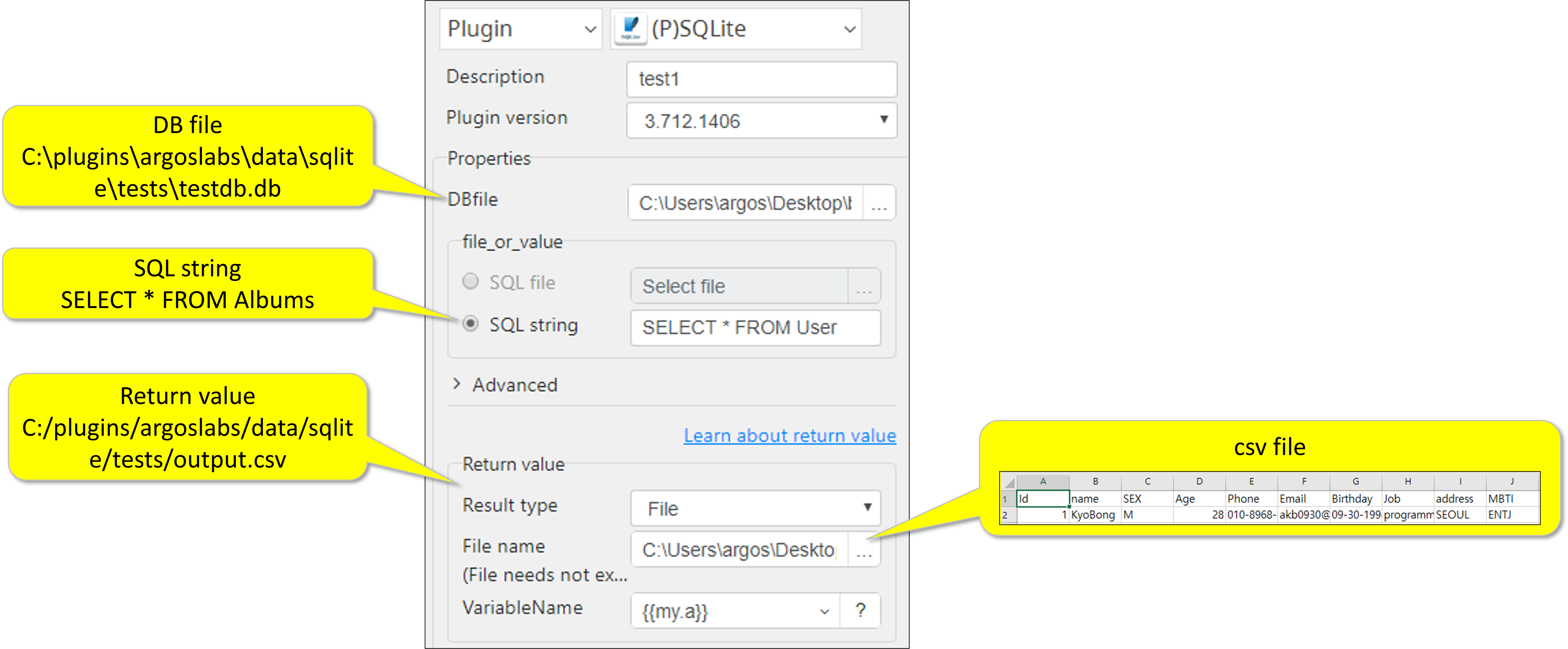
SELECT statement will return regular CSV file depending on the SQL statement’s parameters
The Return Value can be stored in
String
CSV (Internal memory to PAM)
File (either .txt or .csv)
Parameter Setting Examples
- Using string for SQL and returning csv with SELECT statement
- Using file for SQL and csv for input
- SQL file Examples
How to install SQLite
Step 1
- Download and install DB (https://sqlitebrowser.org/dl/)
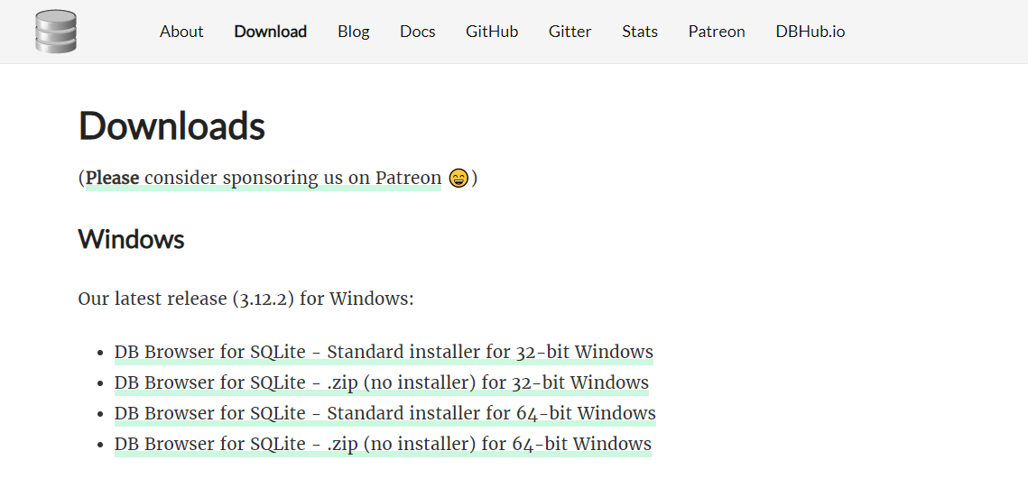
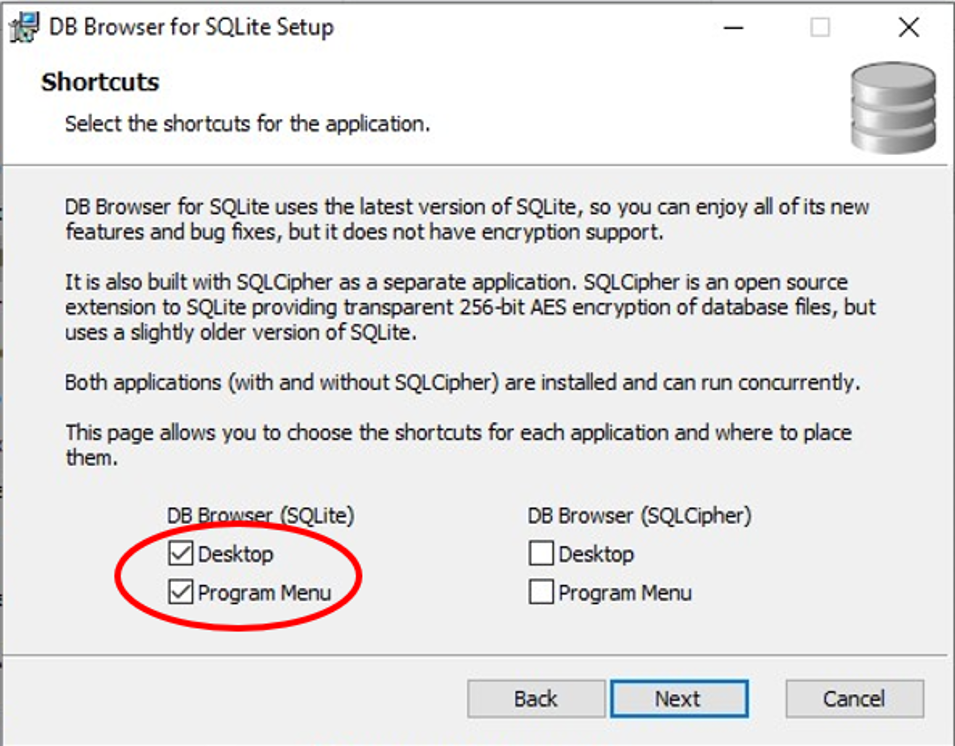
Step 2
- Execute DB and Create a New Database
* Check Desktop if DB cannot be found in Program Menu
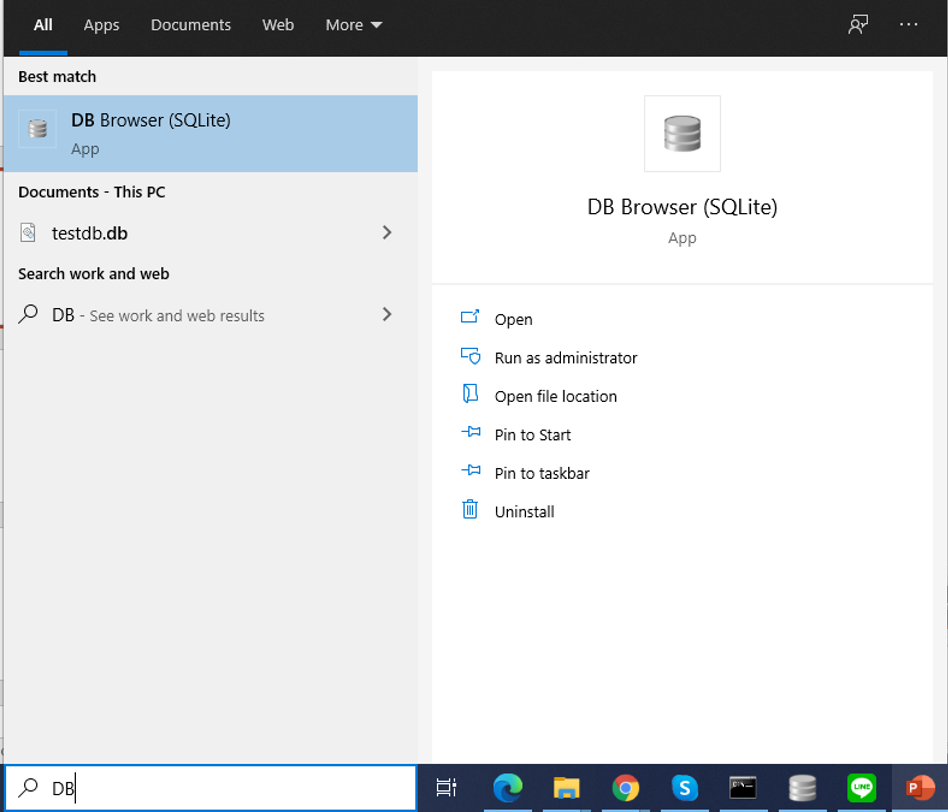
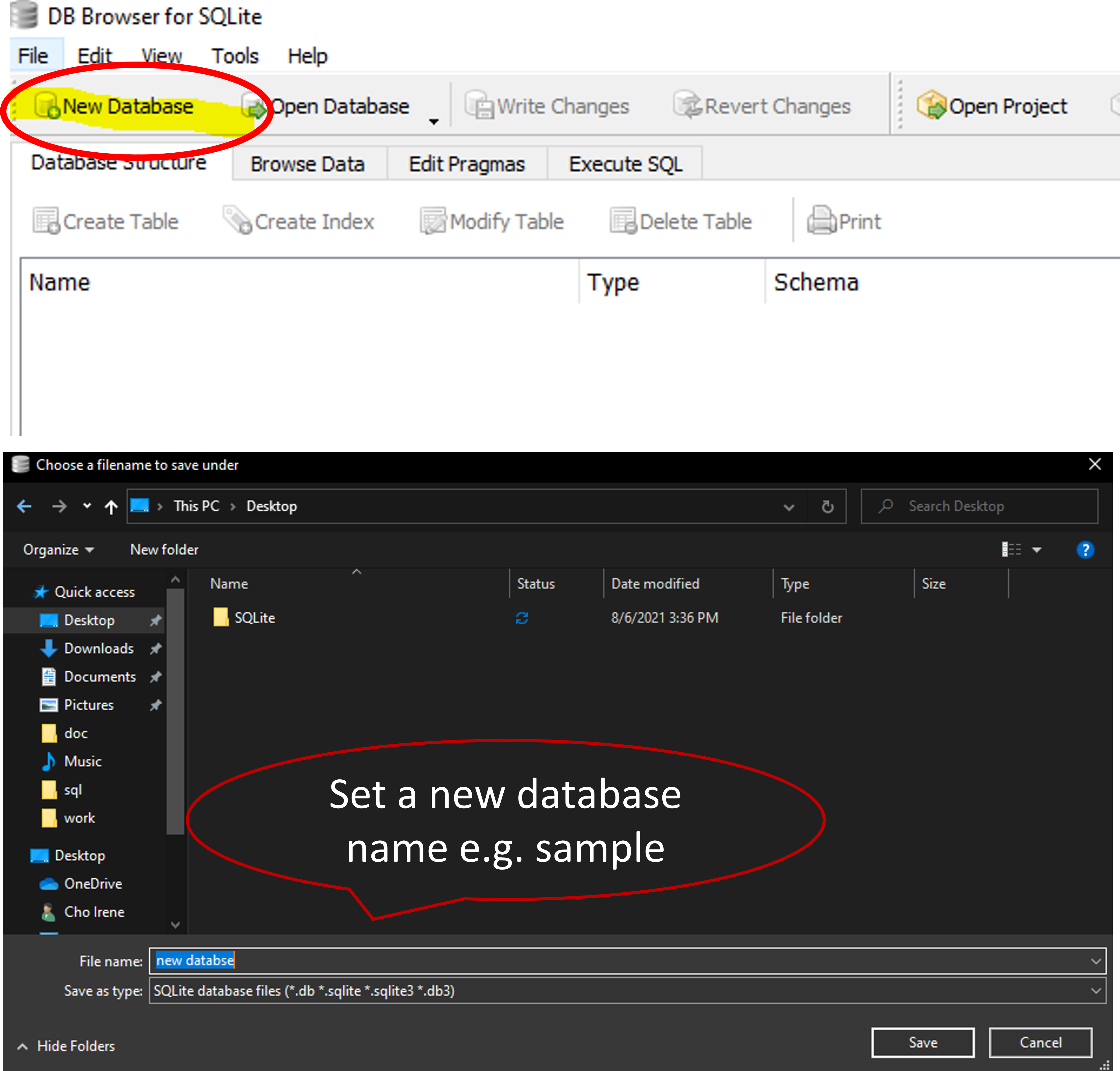
Step 3
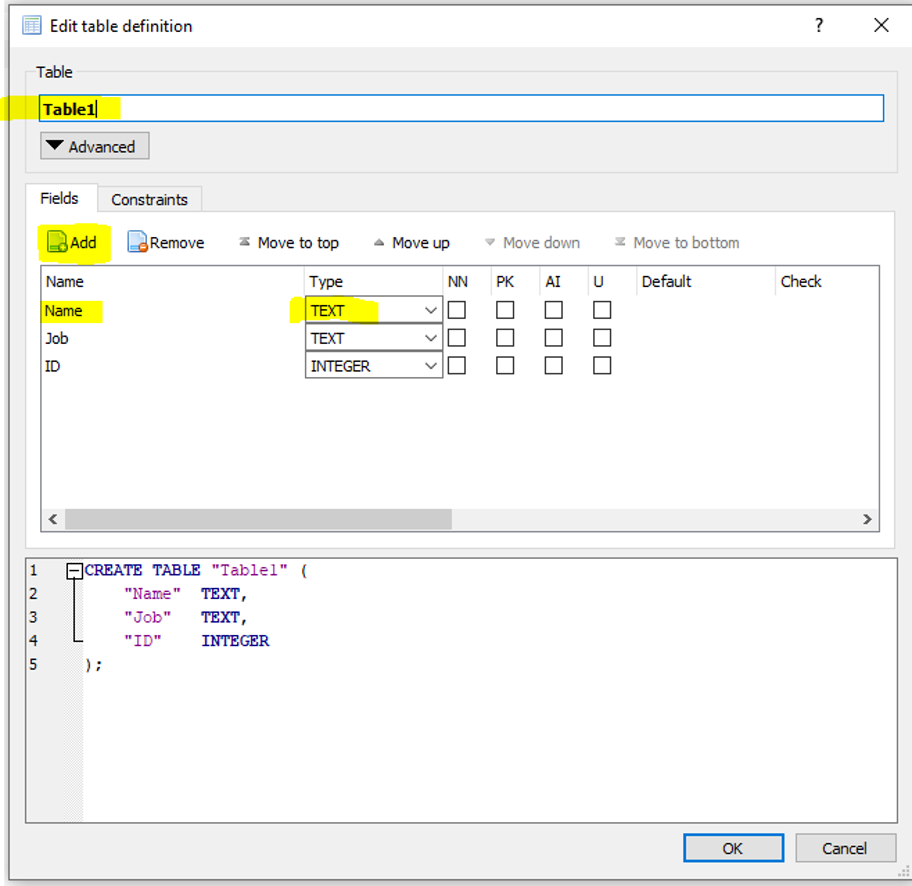
- Create a Table
* Set a table name, field names and types
Step 4
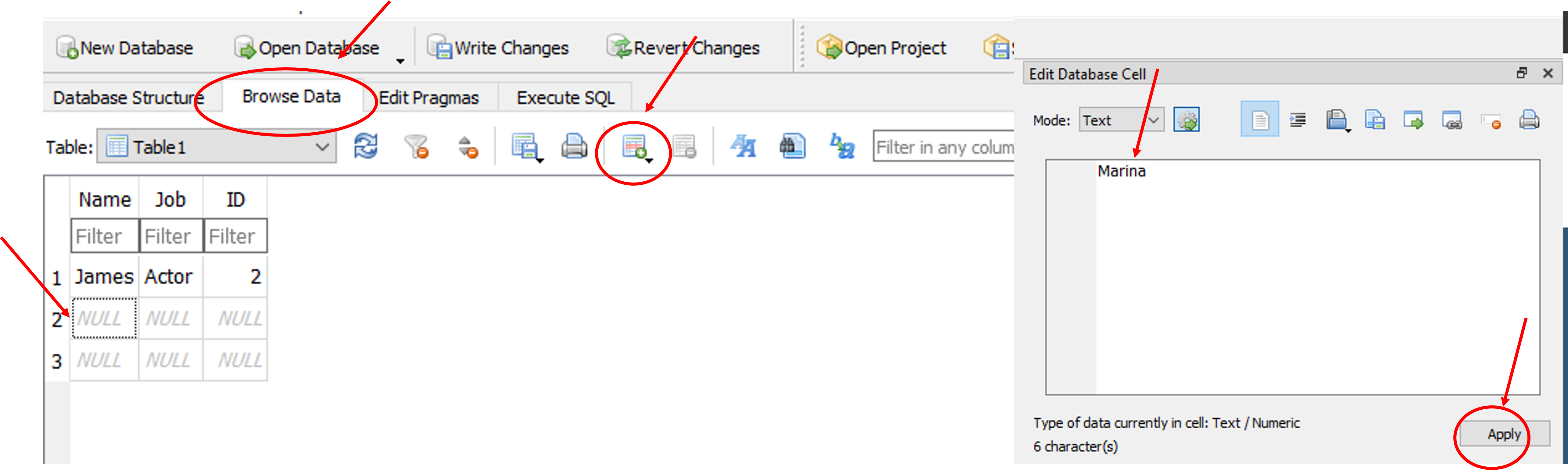
- Input Data and Save
* Click Browse Data and Input Data
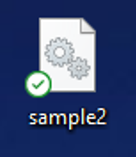
- Save File
Return Code
Code | Meaning |
|---|---|
| 0 | Execution successful |
| 9 | Execution failed |